Eclipse · client

The screen-side app.

Play a Windows or Linux PC’s games on your LG webOS TV, Windows PC or Linux desktop. Pair one host for ordinary streaming, or two Umbra hosts for couch co-op.

Eclipse’s additions use AI-assisted coding. About the development process.

Eclipse downloads

Download an attached file under Assets, not GitHub’s automatically generated Source code (zip) or Source code (tar.gz). Those are developer archives, not installable apps. Use the latest compatible stable release. If no package is attached for your platform, that download is not available.

LG webOS TV

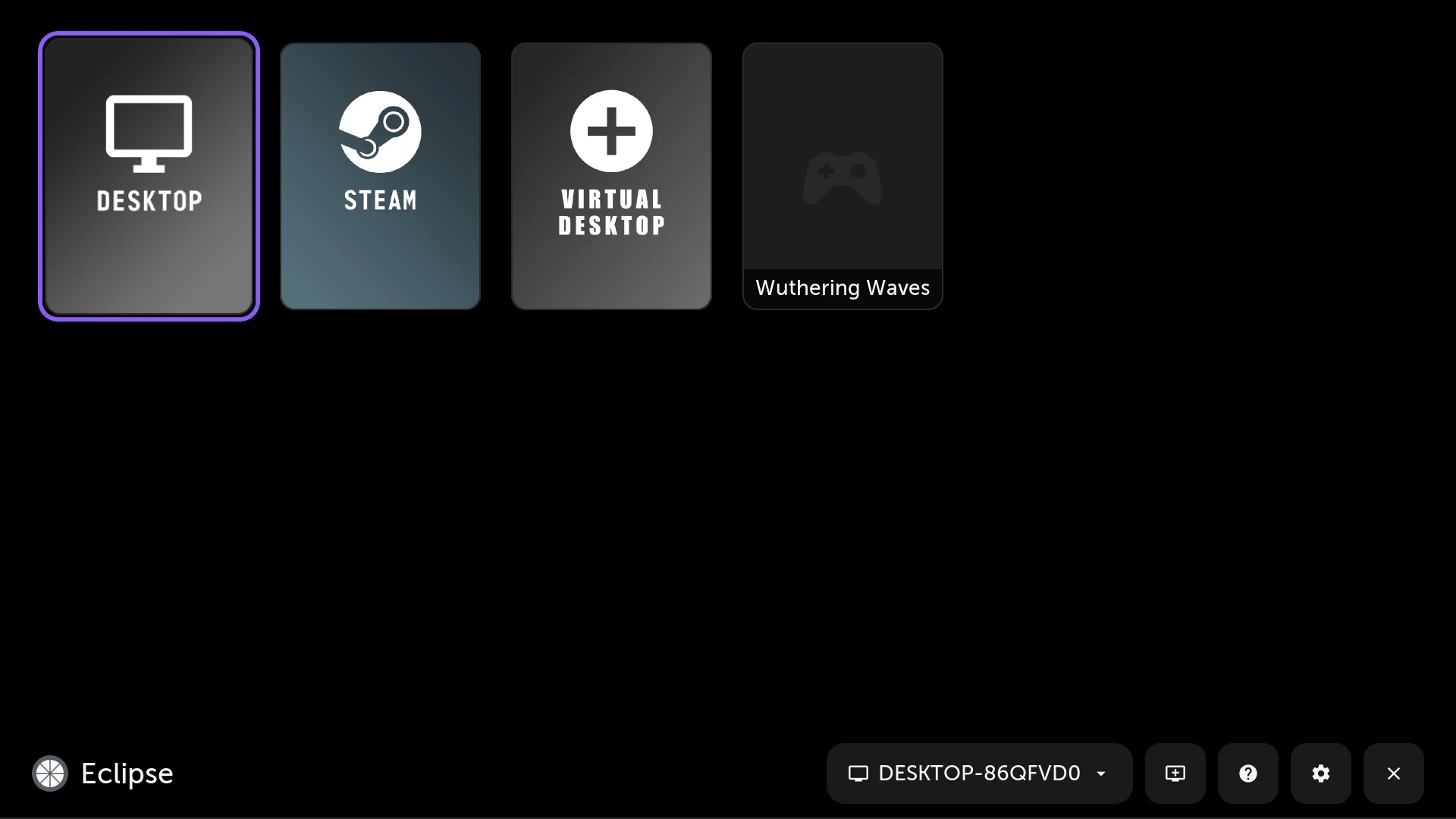
Eclipse running on an LG webOS TV, showing a paired PC’s Desktop, Steam and game entries.
LG webOS releases

Open the latest release, expand Assets and choose the package described below. If no release is listed, that package has not been published.

Choose com.aurora.gamestream_<version>_arm.ipk. Enable LG Developer Mode, connect webOS Dev Manager and install the IPK; updates keep settings and pairings. Tested on LG G5 / webOS 26.
Full LG TV installation →

Windows x64

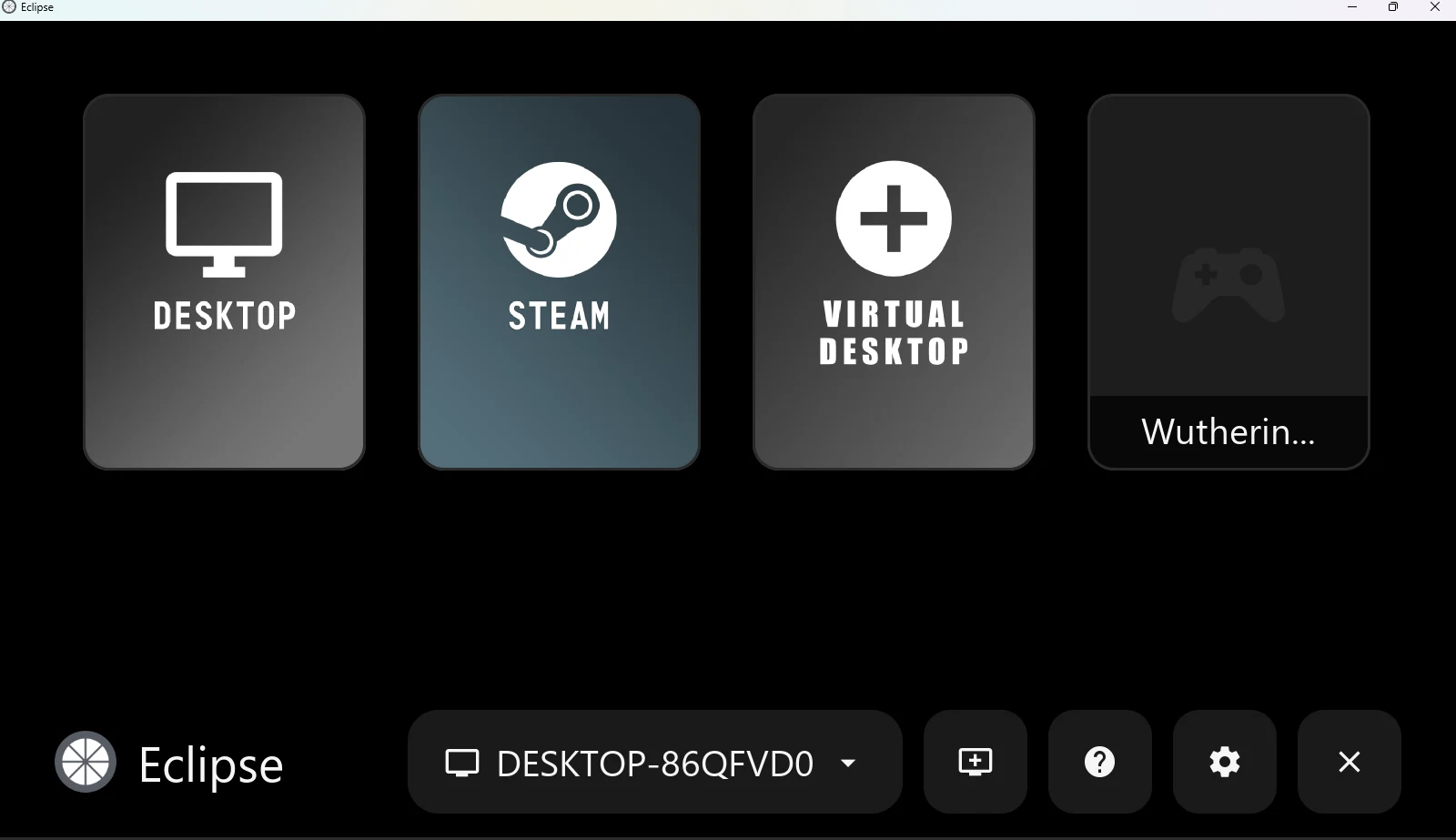
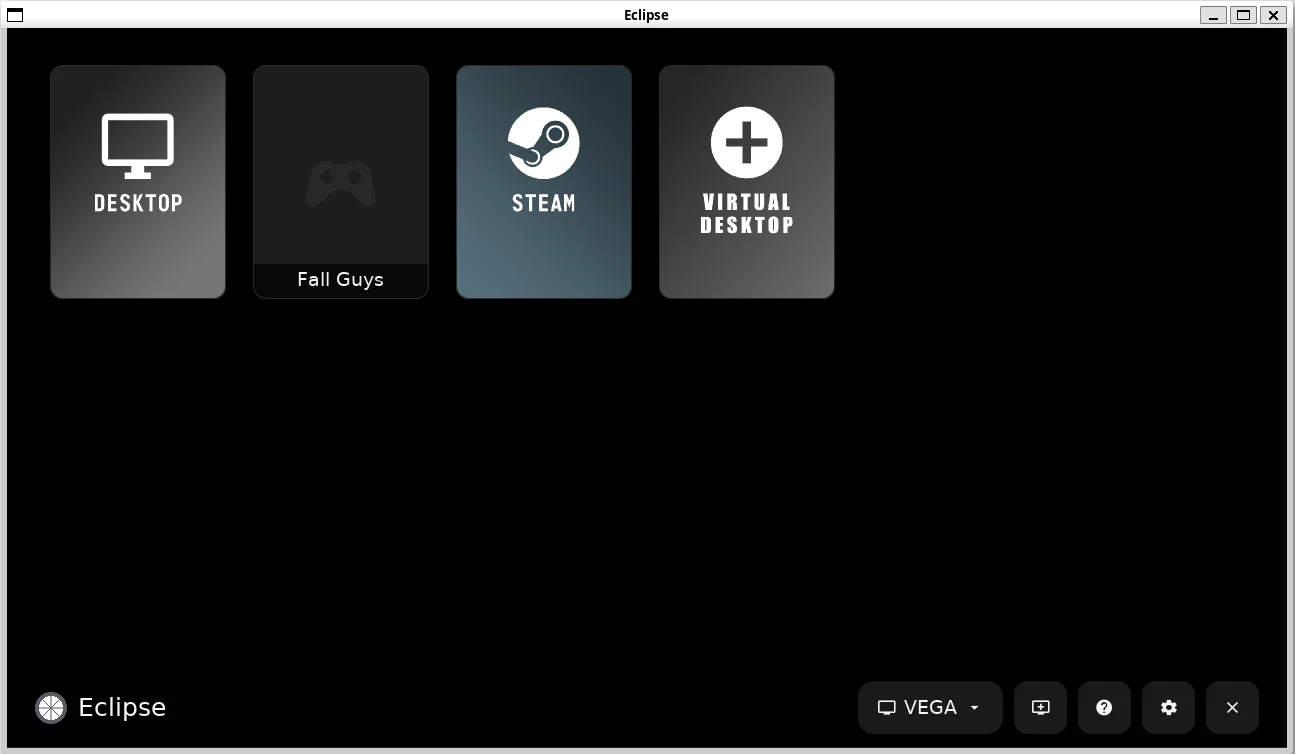
Eclipse running in a normal Windows window, showing a PC’s apps.
Windows x64 releases

Open the latest release, expand Assets and choose the package described below. If no release is listed, that package has not been published.

Choose the installer eclipse-windows-x64-setup-unsigned.exe (or the portable eclipse-windows-x64-unsigned.zip), verify its checksum and run it; the installer needs no administrator access. Tested on Windows 11; hardware decoding required.

Full Windows installation →

Linux x86_64

Eclipse running in a Linux desktop window, showing a PC’s apps.
Linux x86_64 releases

Open the latest release, expand Assets and choose the package described below. If no release is listed, that package has not been published.

Choose eclipse-linux-x86_64.tar.gz, extract and run ./install.sh (or ./eclipse to run it in place). Requires glibc 2.35+ and GPU drivers. Native-Linux coverage remains limited.

Full Linux installation →

One client. Both modes.

Everyday streaming

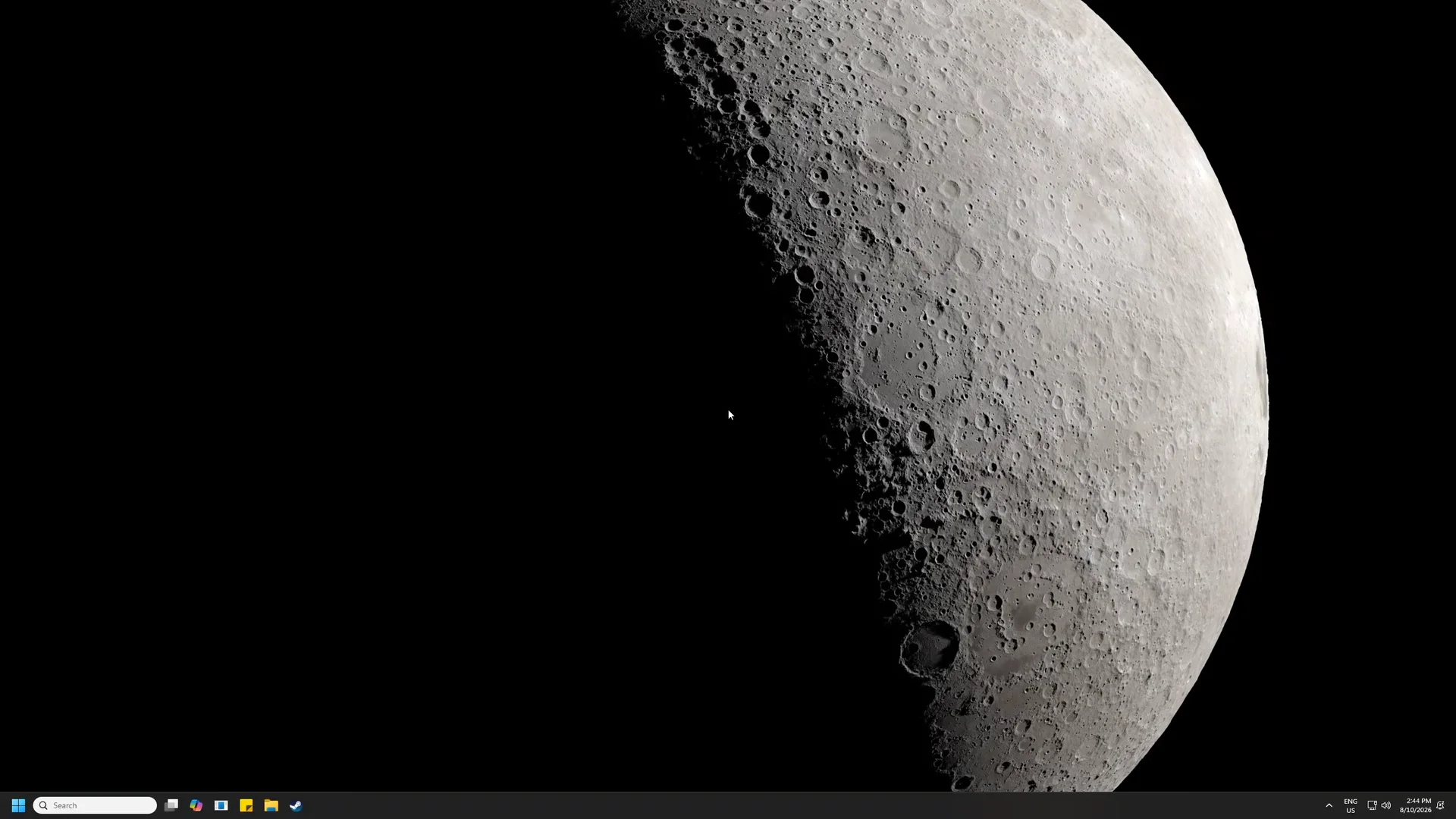
Eclipse on Windows streaming one PC’s desktop full screen.

Host discovery, PIN pairing, game/desktop launch, configurable resolution, frame rate and bitrate, gamepad/keyboard/mouse input, audio and performance diagnostics. H.264 and HEVC on desktop; additional AV1 and HDR paths depend on platform capabilities.

After installation

Pair one Umbra host and launch a game or desktop. For co-op, verify each host alone before choosing two hosts in Eclipse. You do not need to manually create a host application or edit encoder settings.

At the client.

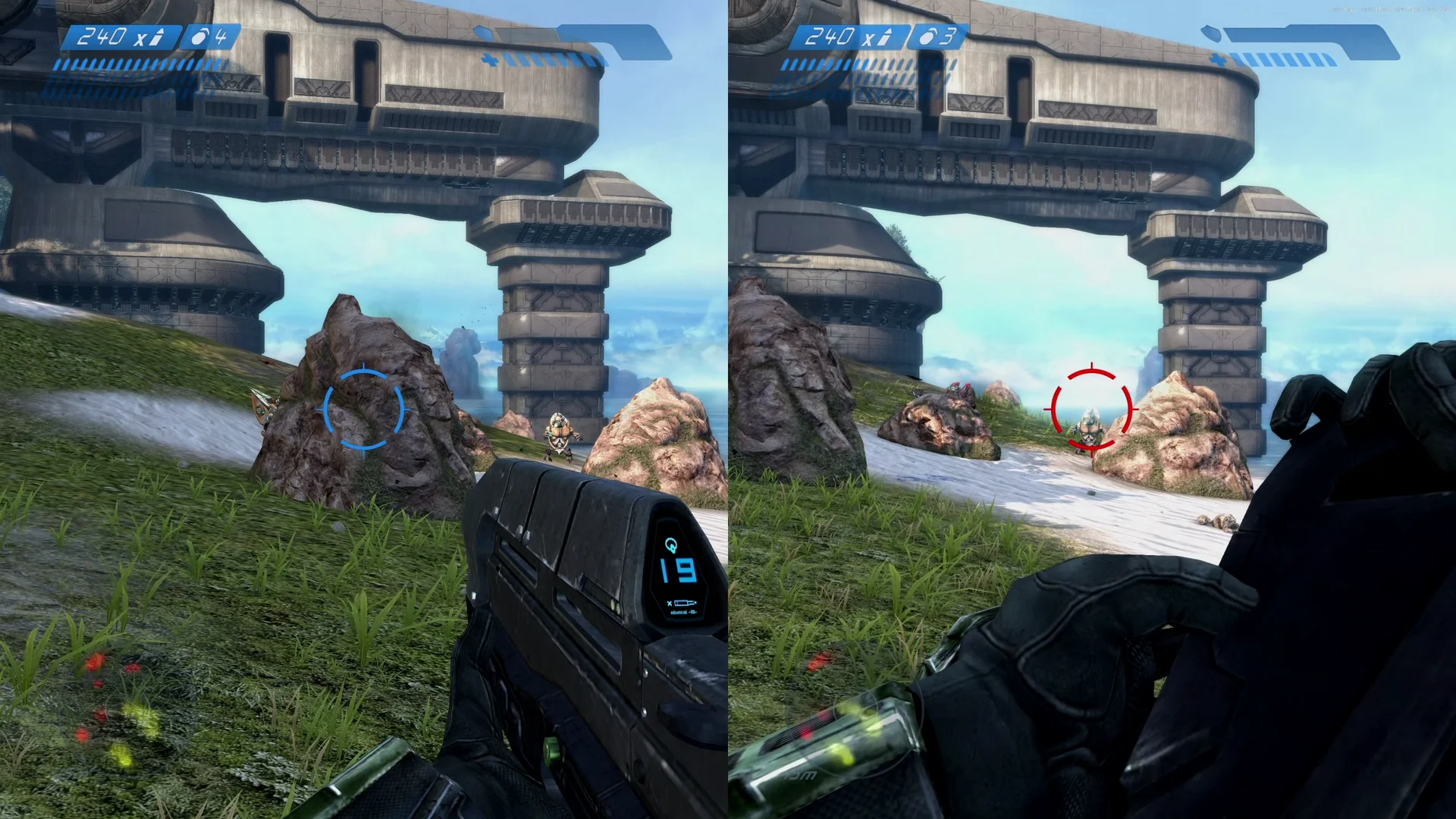
42 seconds · Silent. One PC, then two. Eclipse on Windows, recorded full screen: it streams one PC’s desktop, returns to the library, then opens co-op, picks a layout and starts a two-PC session. Eclipse offers to close the app still running on the first PC before co-op begins. Each half of the finished screen is a different PC, showing its own desktop.Recorded by an AI assistant (Claude) while the developer was away, as a capability test: every click and key press was planned in advance and played back automatically on live hosts. Wallpapers: “Moon Light” by Sir Crab and “KIKI&JIJI” (art credited to Ayu) by 鬥丨Dou, from the Wallpaper Engine Steam Workshop.